Monday, 29 December 2014

Why my Android Phone Suck

Why it happen

The worst problem is seeing a phone that take a hour to launch an app or switch an app. I'm not even saying about gaming.
The main reason for system slowdown is Hardware limitation. No surprise there, the second one you failed  to buy a phone that fulfills your needs.
Hardware limitation means your apps are expecting more from your hardware. It can be RAM, CPU, GPU or storage. The main reason is inadequate RAM. RAM is the major player in system speed .CPU is first but most of the Android phones and tabs now comes with Dual core CPUs as standard and goes beyond quad or even Hexa cores. But these devices still suck if you don't have at least 1 GB of RAM. Apps like Facebook nowadays are memory intensive, they literally eat your RAM even when you are not using them.
You can check what eating it all from
Settings- Apps- and swipe to Running apps.
There you can see the total amount of RAM and how much is left.
If you tap on an app, it will show the
details . You can stop it by tapping on force stop.

Unwanted Apps

The second most important reason behind system slow is the number of Apps installed. Most of the phones comes with a lot of bloatwares that you have no reason to keep them in your device. Google apps are preloaded to every android phone even if you want it or not. But what is the point of buying a ship for the flood that may come? My point is if you have no use for Google map, why you keep it? You can't get rid of the preloaded apps that simply but you can disable it from App settings . The rest you can uninstall to save space and RAM
.
OneDrive running in background
Removing Bloatware is not an easy task when you have an UnRooted device. Disabling them will differently improve your phone's performance.
Disabled view Google Preloaded apps

Saturday, 11 May 2013

Download Managers

Download managers helps you to download Files without the help of browsers.Its really helpful when you are browsing There are lot of Download managers im listing some of the popular Downlad Managers here
Download JDownloader 0.9JDownloader

JDownloader is your personal internet robot that does all the work for you. It will download whole photo albums, playlists or just about anything else with just one click. No wait times: JDownloader can reconnect your router in order to skip those painful waiting times some sites have. Automatic Captcha Recognition. Copy MULTIPLE links and JDownloader will automatically download all of them for you as fast as possible, without you having to return to your computer. Automatically save files with certain filenames to certain preconfigured folders. Click'n'Load: One Click, and all the files you need automatically start downloading. No need to copy lots of links or click on each one individually-just Click'n'Load. Auto-Extraction: Ever wanted to start watching a movie, but first had to wait until it was extracted? JD automatically extracts those files and saves your passwords, too. Thousand Supported Sites.

Downlad

Download Free Download Manager 3.9.2 build 1303Free Download Manager

Free Download Manager is a powerful, easy-to-use and absolutely free download accelerator and manager. Moreover, FDM is 100% safe, open-source software distributed under GPL license.

FDM offers these features:
  • BitTorrent support
  • Upload Manager
  • Flash video downloading
  • Portable (USB stick) mode
  • Audio/video file preview and conversion
  • Download acceleration
  • Resume broken downloads
  • Smart file management and powerful scheduler
  • Adjust traffic usage
  • HTML Spider: Download whole web pages or even whole web sites with HTML Spider.
  • Simultaneous downloading from several mirrors
  • Zip files partial download
  • Active spyware and adware protection through active communication among users
  • Multi language support
  • Plus many more features!
Download


Download Internet Download Manager 6.15 Build 11Internet Download Manager


is a tool for increasing download speeds by up to 5 times, and for resuming, scheduling, and organizing downloads. The program will resume unfinished downloads due to network problems, or unexpected power outages. The program features a full-fledged site grabber that downloads files that are specified with filters, for example, all pictures from a Web site, different parts of Web sites, or complete Web sites for offline browsing. The program supports HTTP, HTTPS, FTP and MMS protocols, and has an adaptive download accelerator for MP3 audio, FLV and MPEG video files. The program also features Download Video and Audio Panels for Internet Exporer, Chrome, Opera, Safari, Firefox and other Mozilla based browsers that appears on top of a web-player and can be used to download flash videos from sites like YouTube, MySpaceTV, Google Videos.
What's new in this version: Version 6.15 build 9 adds support for Firefox 22, updates IDM integration extension for Google Chrome, and fixes bugs.

Download


Download Download Accelerator Plus 10.0.5.3 Download Accelerator Plus

DAP is a consumer application that accelerates your downloads using SPEEDbit's patented multi-channel technology. While you download, DAP ensures your computer is using maximum bandwidth by downloading from parallel mirror sites.
Main features:
  • Automatic Mirroring Speed Boost.
  • Download safer as you see what the leading security programs say about your files.
  • Continue broken or paused downloads
  • Watch previews of videos as they download.
Download


Sunday, 21 April 2013

Make The Most Of Google Chrome

Things You Should Know About Chrome Web Store

                                           What You Know About google chrome?Speed,Easy to use,Its from Google Ya its all true but You ever opened the Web Store icon icon in the “Apps” section of Chrome ?If You didnt You really missed the best part of it


File:Chrome Web Store New Branding.pngWhat is the Chrome Web Store?
The Chrome Web Store is an online marketplace where you can find a wide range of extensions, themes, and apps designed for the Google Chrome browser. By displaying each item on its own details page where you can read reviews and leave ratings, the store makes it easier for you to explore and try out apps.

What you’ll find in the Chrome Web Store

  • Apps are advanced websites that are similar to other types of programs that you install on your computer. The main difference is that apps are accessed and used entirely within the browser. You may already be using apps if you use sites like Gmail or Pandora
  • Extensions are custom features and functionality that you can add to Google Chrome. Unlike apps, they’re always available, no matter what website you’re on.
  • Themes change the skin of the Google Chrome browser, to give it a bit more style and flair. Choose from hundreds of eye-popping themes 

    What are apps?
Web-based applications are programs that are designed to be used entirely within the browser. Using apps, you can do things like create documents, edit photos, and listen to music, without having to install complicated software.
These days, websites are capable of dynamic functionality that you expect from desktop applications on your computer. We call these robust sites web apps, or "apps" for short. If you use services like Gmail or Google Maps, you're already using apps! Apps have the following advantages over desktop applications:
  • Apps install in seconds, with one click of a button. You don’t even have to restart your browser or computer.
  • Your apps are always available. No matter what computer you’re using, you can always access your apps. Learn about syncing apps across multiple computers.
  • Apps are always up-to-date. Because apps are hosted on the web where they can be instantly updated, you can be sure you're always using the latest version of the app that's available.
  • Apps won’t crash your computer. If one app misbehaves, just close its tab in the browser. Your browser and computer won’t be affected.

About extensions

Extensions are extra features and functionality that you can easily add to Google Chrome. By using extensions, you can customize Google Chrome with features you like, while keeping your browser free of things that you don't use.
Here are a few reasons why we like extensions:
  • Get bonus information about a page.
    Extensions can enhance the page you’re on with relevant links and information. For instance, using the Select to get maps extension, highlight an address on the page to get instant directions and map links.
    extension screenshot
  • Get timely notifications.
    Some extensions add buttons next to the address bar to let you know about certain events. For instance, use Google Mail Checker to get alerts about new emails.
    extension screenshot
  • Do things with fewer clicks.
    Some extensions act like shortcuts. For example, if you use a feed reader, the RSS Subscription Extension lets you know if there's a feed for the site you're on. Click the small icon that appears in the address bar to quickly subscribe to the feed.
    extension screenshot

Thursday, 18 April 2013

Managing Startup Items in Windows 8

Manage startup items in windows 8

                                                     
Startup items have an important role in the speed of your PC.If you left them uncheck they will slow down your PC like hell.Startup items means programs that starts up when we start our pc.most of them are not necessary , If you have too many startup items your PC will take several minutes to get to the running condition . Whatever it has a solution till windows Xp or early versions.When Microsoft introduced windows 8 they changed the old way with a new and simple one.The startup from System configuration to task manager so i'll show how to change the startup items in windows 8  and windows 7.

Step 1. Open task manager  (you have many ways to open Taskmanger 
1.Press Shift+Ctrl+ESC
2.Right click on taskbar and select task manager
3.Rightclick on the Windows 8 start screen pop up and select task manager
4.type task manager in start screen
5.type taskmgr in the Run window
6.press Alt+Ctrl+Del select task manager)

 Step 2.Select the Startup tab
There you can see the Startup items and its impact on startup 
Taskmanager Startup tab
Step 3.Right click on the startup item that you wish to disable and select disable from the menu
Please Note there are some important startup items like Antivirus and processor modules so be careful  when you Choose it
Select Disable from  right conxtent menu


Saturday, 15 December 2012

Adding Hibernate to Windows 8

Adding Hibernate to Windows 8

windows 8 is more like a tablet Operating system running on PC ,what ever i like it.Whole new changes ,well that is The problem on the otherhand ,most of the Options are hidden from view and  different from windows 7 and Xp.In my case i use the hibernate option more often but it is not there by default,it doesnt mean it is gone for ever just hidden and it can be brought back in sipmle steps .we need to add that option by ourself. To do this follow this steps


Step 1:Go to start screen and type power options  and open it

 while searching for poweroption (you can see the option change what power button does click it so you can skip the 2nd step

Step 2:In power options click the Choose what power button does


Choose what power button does option is on the left side of screen

 Step 3: From there you can see the Hibernate option is turned off.to change this click on change settings that are currently unavailable


login as administrator  to change the settings

Step 4: After that you can check the options you want and  click save changes


Tick the box hibernate to enable hibernation

Hibernate Option in powerbutton

Shutdown Windows 8 in single click

Shutdown windows 8 in single click

Microsoft made windows 8 more like a tablet OS,most of the options are hard to find when compare to the earlier versions.one of them is shutting down the pc,it was  very easy with start menu and couple of clicks.Now they removed start menu and introduced start screen.I wonder why the didnt incude a shortcut  to shutdown in the start screen ,it would be more convenient .The correct way is to shutdown is using the charms menu(win+i) >power>shutdown
but its not that fast like in the old days and confusing to new users.the old school ALT+F4 still functional but i prefer this simple way and can shutdown pc with single click from star screen    


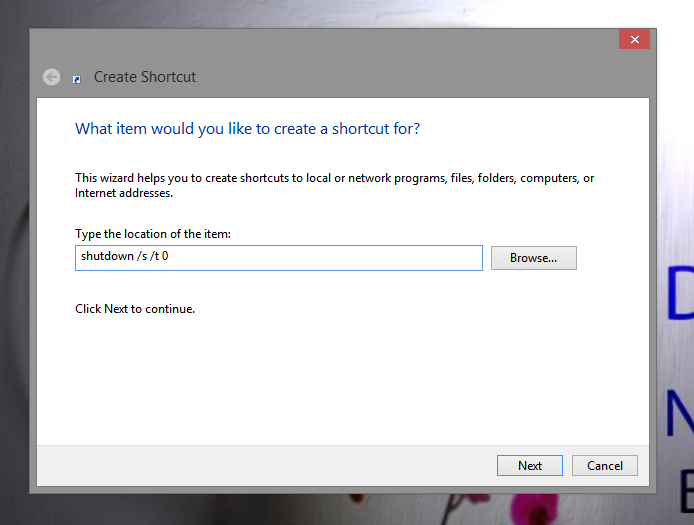
      Step 1:Right click on desktop >new>shortcut


       Step 2: type  shutdown /s /t 0 
       (more clearly shutdown(space)/s(space)/t(space)zero)


     Step 4: Click Next continue .Rename the shutdown.exe if you want  click finish


You can see the shortcut on desktop .If you want to change icon right click on it  >properties>change icon andbrowse the .Ico file


The highlighted one is the default icon of shutdown shortcut
 Now to add it to the start screen right click on shortcut >Pin to start

shutdown Shortcut pinned to start

Thursday, 6 December 2012

Windows 8 The Easy Ways

Windows 8 Easy ways

Finally i got my windows 8 up and running in my Toshiba laptop after some bad days and blue screens.The first thing i noticed is THERE IS NO F8 to access safe mode .At first i thought it was my bad timing on key press,but then i realized , Microsoft removed that feature to speed up the boot .What ever it really paid off .My windows 7 was staring time was  2 minutes,when it came to windows 8 it is amazingly 22 seconds  .

ACCESSING THE SAFE MODE

ill skip to the content, Windows 8 is fast and awesome both in performance and look,but it take some time to sync to the new os .let's start with Safemode
 Traditionally we access safemode by pressing F8 key before pc boot..now its changed .i read it will work with shift+F8  but not happened in my toshiba satellite pc, another Microsoft preferred way is using the Advanced startup option .I tried it but my keyboard stop working when it says to press corresponding number.Another way to use command prompt but it was complicated 
finaly  i figured a simple and effective way (that's what i think) 


let me show you:

step1 :Go to RUN(win+R) this will bring up the RUN window

step2 :type msconfig  and click ok then you can see the system configuration window.

step3:From system configuration click on BOOT tab,check the safe boot option with additional feature You want (minimal,networking etc).


step5:Click Restart your pc


after that don't forget to disable the safeboot option by simply unchecking it to prevent pc restaring in safemode again.

TURNING OFF THE MESSAGING APP

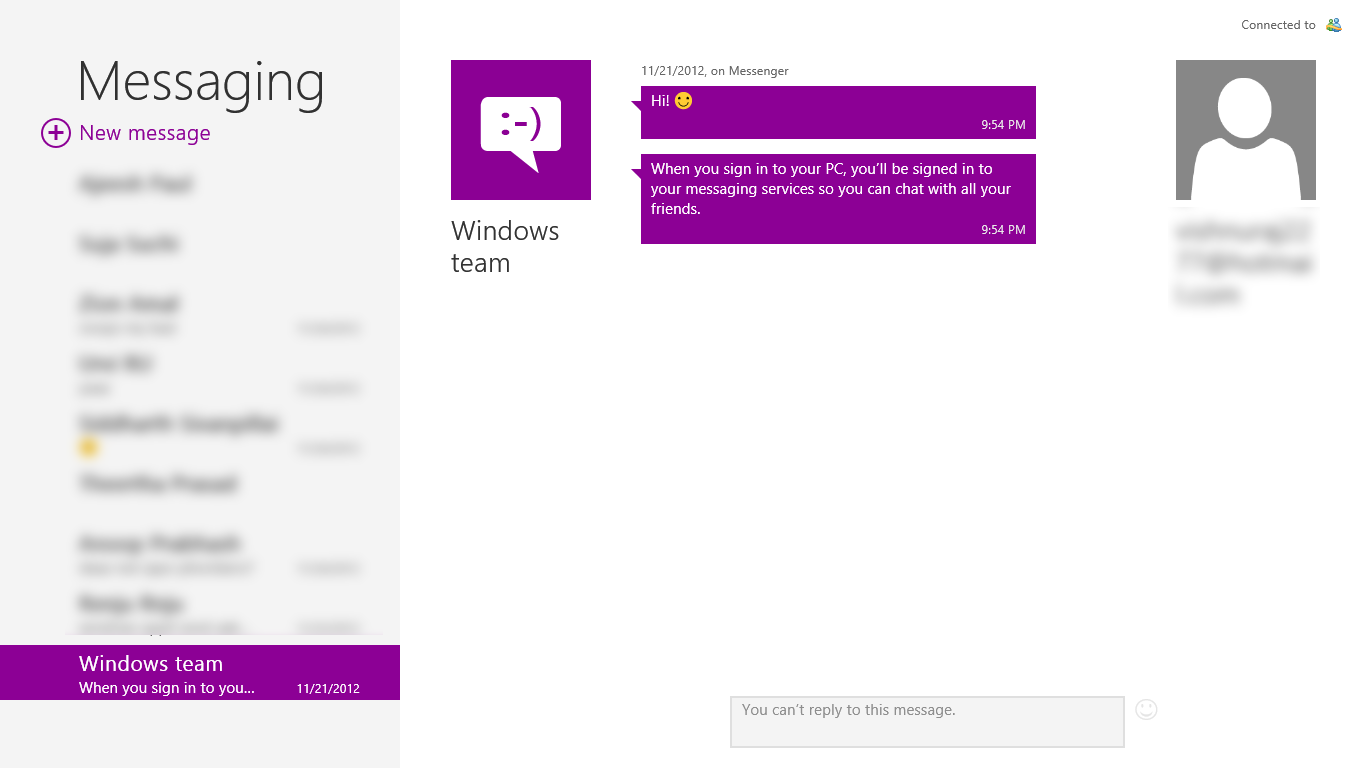
The next part was the instant messaging service app.It is a good and much needed app ,but the problem was it change my status to ONLINE in all my linked accounts as soon as i connect to internet . Actually Microsoft meant that to stay in touch with friends.but everyone is not like that .for me i am getting messages if i am not in the mood to chat .So i turned it off .if this is your problem 
let me show you:

step 1:Open the "Messaging App" from start screen


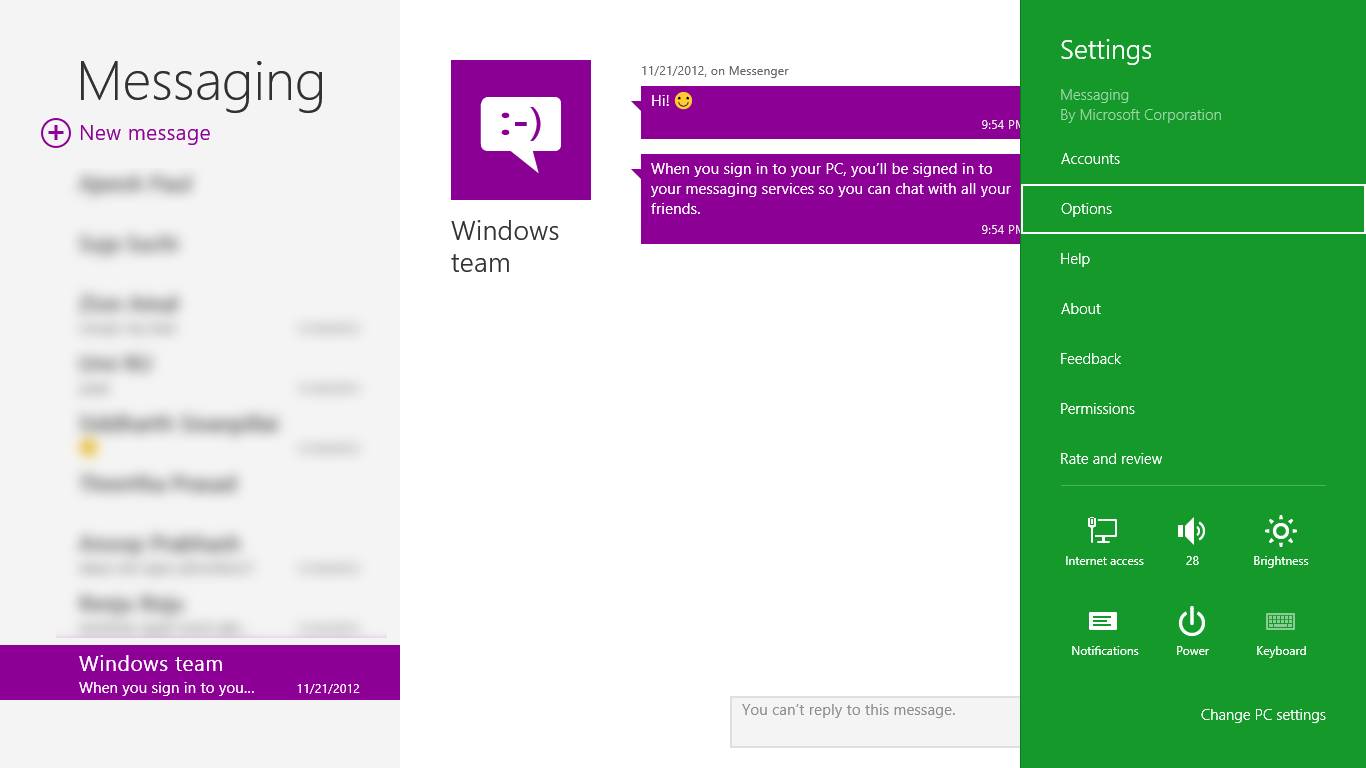
step 2:Press "win+i" to access settings


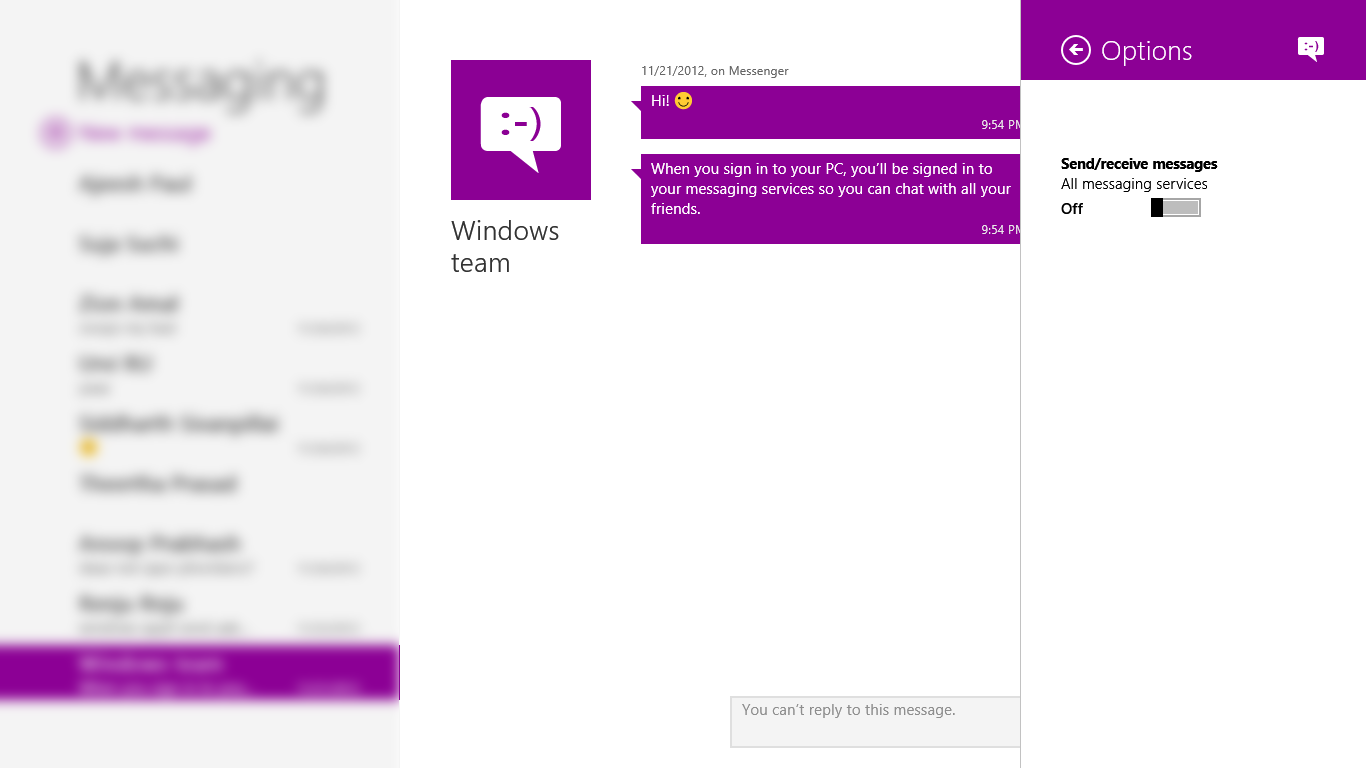
step 3:Tap  "Options" to see options for messaging appstep 4:Set send/receive message to OFF


Change this to ON when you are ready to chat again

CLOSE OPENED APPS

Another funny thing was HOW TO CLOSE OPENED APPS!!! ya that's true .I saw people using even Task manager to  close the opened apps.The correct way is
MOVE the mouse pointer all the way to TOP till it turns to the  HAND symbol,CLICK and HOLD it and MOVE it to the very BOTTOM of the screen .that's how to close an opened app

ADD SYSTEM SHORTCUTS TO DESKTOP 

By default there is no MY COMPUTER  shortcut in  the desktop so we have to add it manually

let me show you:

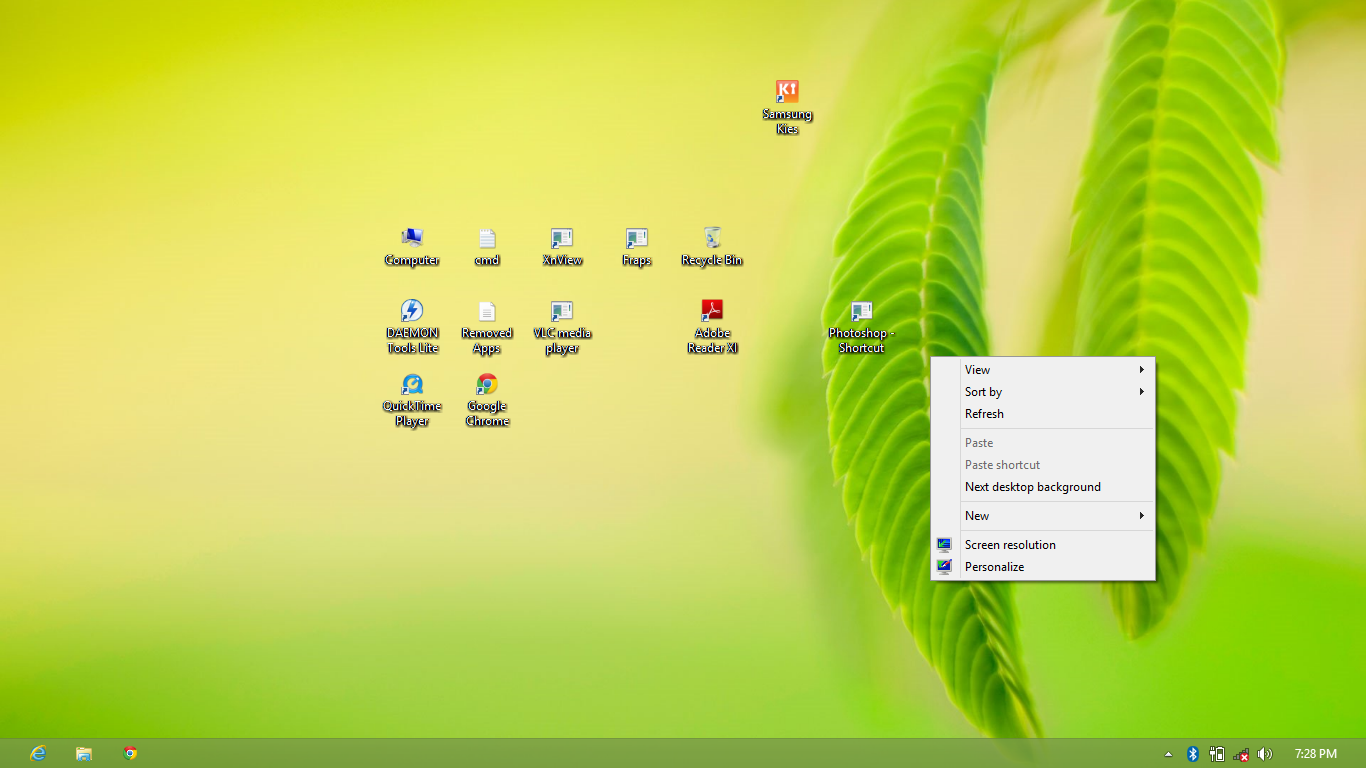
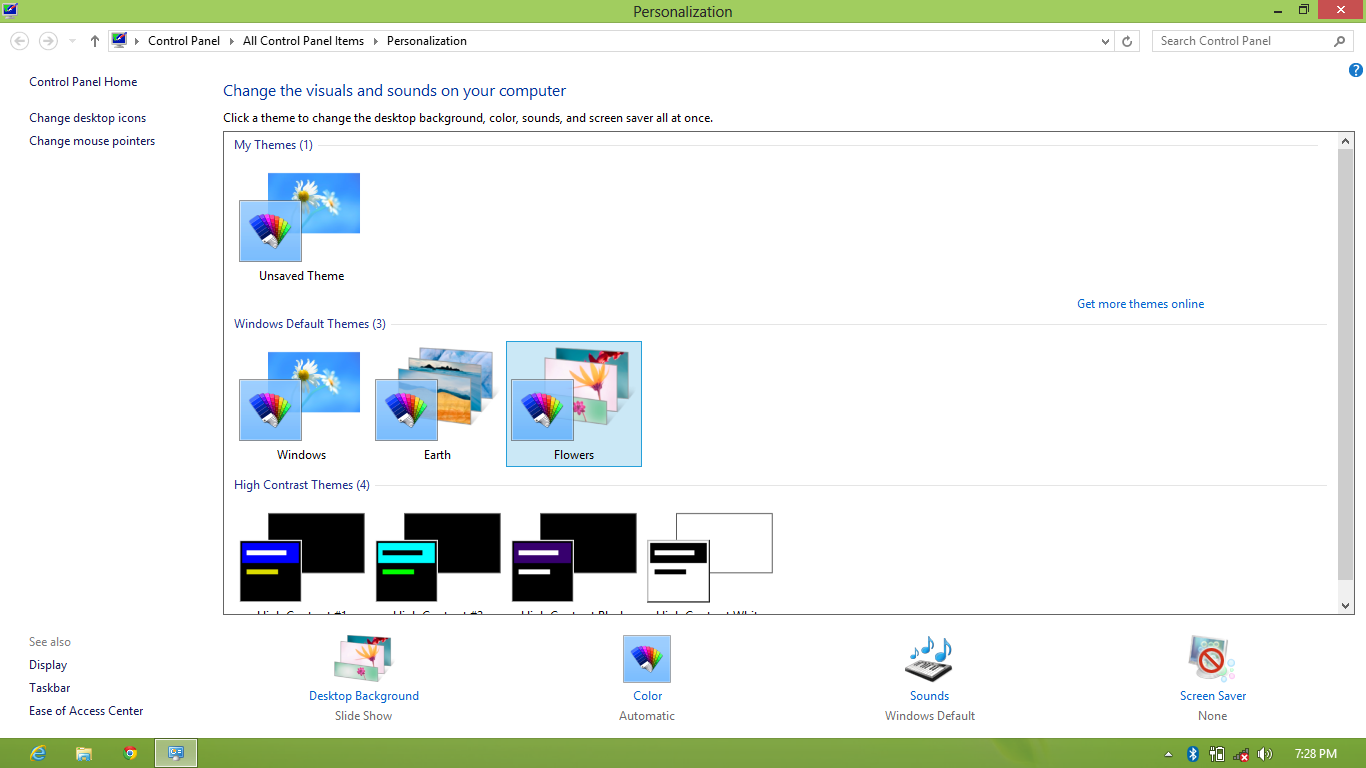
step 1: RIGHT CLICK on desktop and select personalization


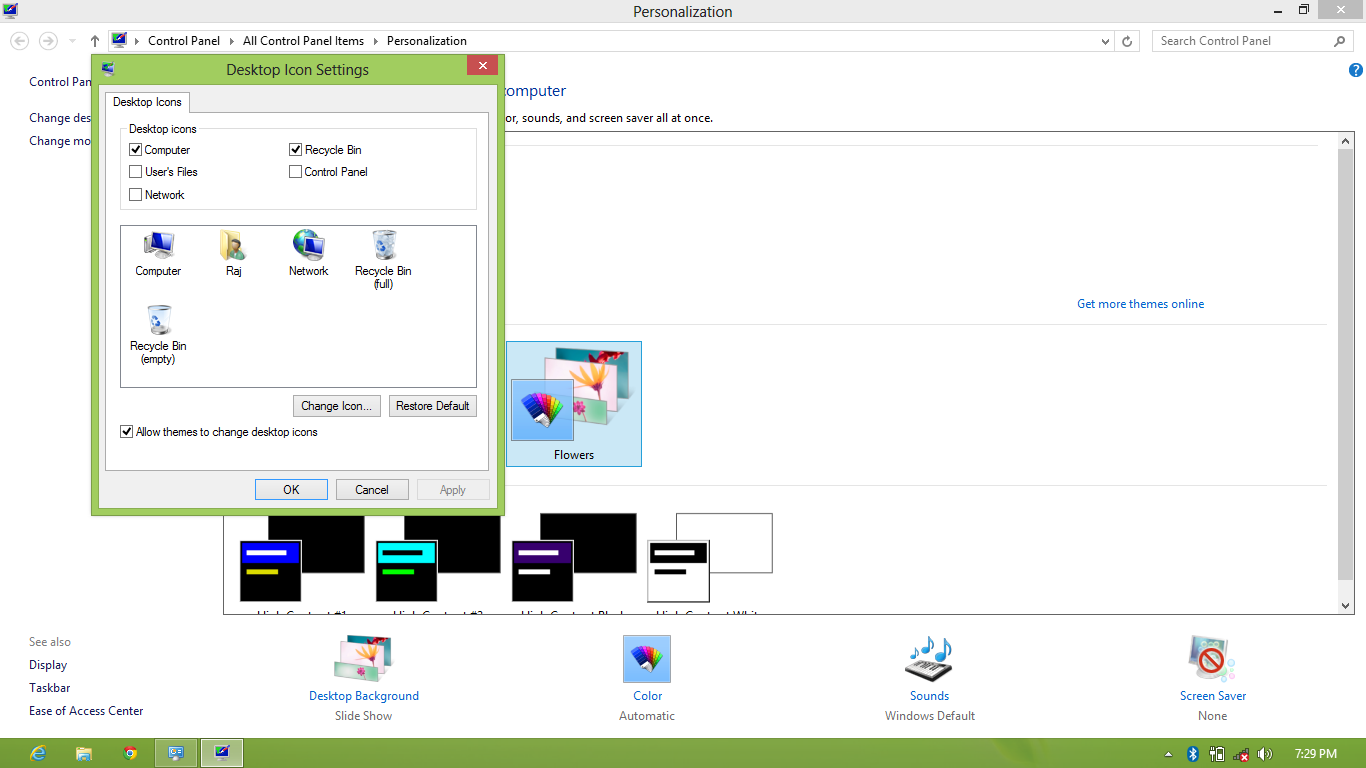
step 2:Select  Change Desktop icons 


step 3:Chose the shortcuts You want by checking it 


step 4:Click ok